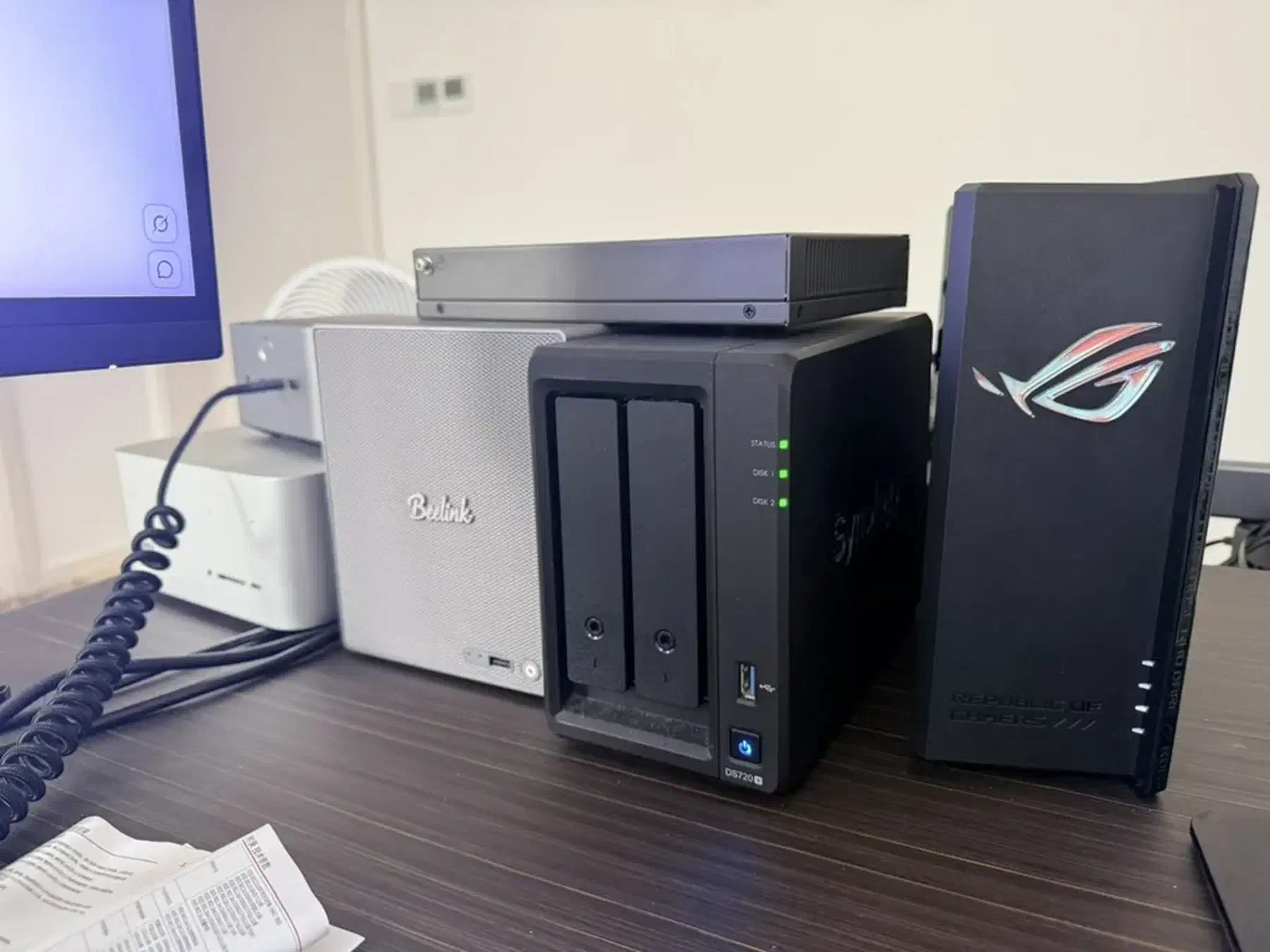
A Tiny Aluminum Cube: Hands-on with the Beelink ME Pro NAS

Last night, before bed, I threw together a post about the three gadgets middle-aged men obsess over: NAS boxes, routers, and chargers. It picked up more than 30,000 reads in a day. Apparently, the stereotype has some truth to it.

I mentioned that I would write separately about my new Beelink ME Pro NAS today. So here I am, before bed again, talking about this little aluminum cube. First, the disclosure: I was not paid for this, and it is not an ad. I bought all this hardware myself, for my own use.
How I Found Beelink
I first noticed Beelink’s mini PCs through DHH’s posts about Omarchy. He was trying Linux mini PCs, found that Beelink’s little boxes suited Omarchy well, and posted enough about them to tempt me. Last September, I went through Beelink’s lineup. After plenty of deliberation, I bought a GTR9 Pro with an AMD Ryzen AI Max+ 395 and 128 GB of RAM. I wrote about it in “WinStudio: Running a 200B Model Locally for ¥10,000?”.
That machine may have been my best “investment” of the past year, measured by its unrealized percentage gain: the official price climbed from a little over ¥10,000 to ¥27,000. I have been very happy with it. It compiles fast, runs a pile of test VMs, and makes an excellent build farm for PostgreSQL extensions. It is also quiet—a much more pleasant companion than my old Dell R730 server.
My main regret was buying only one. Then the memory price surge pushed the price to ¥27,000, and buying more stopped being appealing. But there were still other things to look at.
Why Another NAS?
Machines with lots of RAM had become worse value, but one category still looked worth exploring: NAS.
The usual names are Synology, QNAP, and TerraMaster. In the last couple of years, newcomers have crowded in: Beelink, Minisforum, fnOS, Ugreen, even Xiaomi.
I had always used Synology. Its price premium is substantial, which is another way of saying the hardware is poor value. Most of that premium buys the software: DSM. It works out of the box, manages storage pools and the other details for you, and rarely demands much tinkering. If you have the money and want to avoid the work, I still think Synology is the best choice.
As I mentioned in the previous post, I started with a DS918+ and later added a two-bay DS720+. I sold both yesterday and replaced them with a DS923+ fitted with 10GbE. The data I cannot afford to lose or corrupt still lives there as the authoritative copy. Beyond that, though, I am happy to have another NAS to play with.
The real trigger was less noble: China Merchants Bank gives me ten times the credit card points on my birthday, and I wanted an excuse to buy something. I happened to see this machine, did some research, and realized it matched what I already had: four spare hard drives and four NVMe SSDs pulled from desktop PCs. It has exactly four HDD bays and four M.2 slots. A home for the whole pile of spare parts—why wouldn’t I?
Minisforum N5 or Beelink ME Pro?
Initially, I preferred the Minisforum N5 series. Another cute box, with five drive bays. The N5 Max uses the same AMD Ryzen AI Max+ 395 as my GTR9 Pro. But I already owned one machine with that chip. Buying another seemed redundant; I might as well focus on storage.
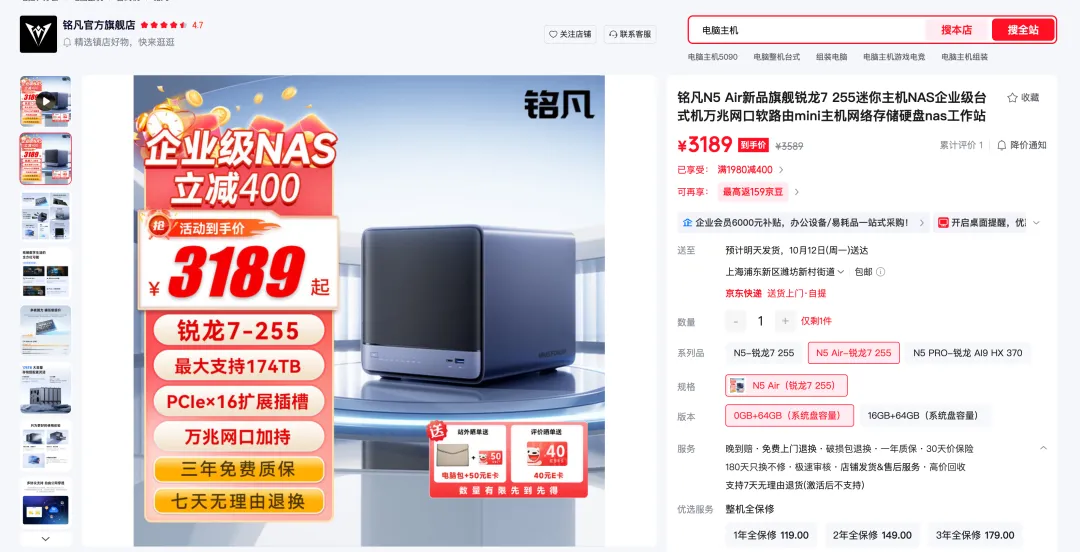
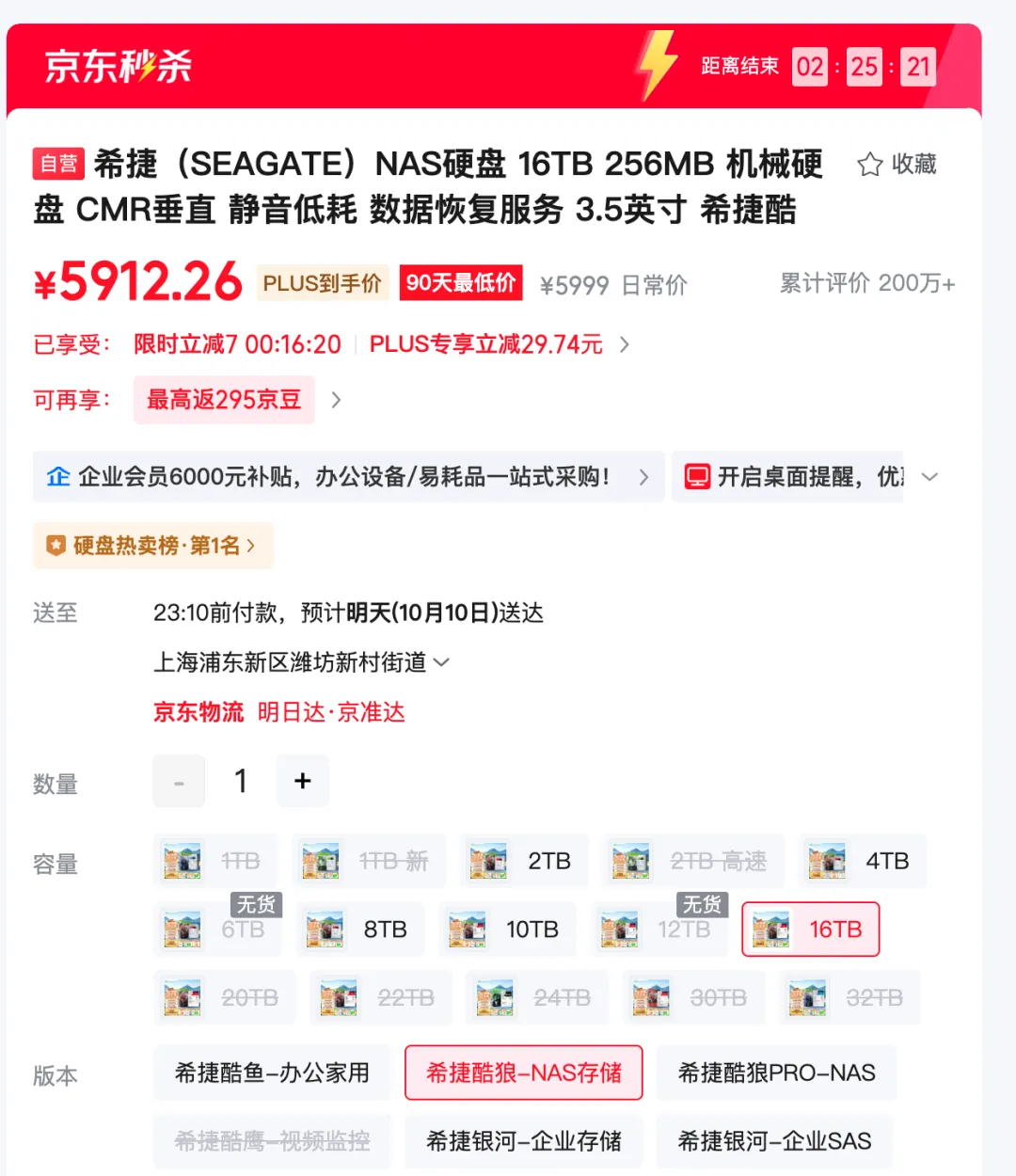
The N5 Air and N5 Pro also looked good, and the Pro supports ECC memory. All three use the same enclosure, though, and it is simply too big. I also did not have a fifth hard drive. If I bought another one to three drives, the prices were discouraging: the 16 TB Seagate IronWolf I bought for ¥3,300 in 2022 was now listed on JD at ¥5,900, nearly twice as much. Five bays were unnecessary.

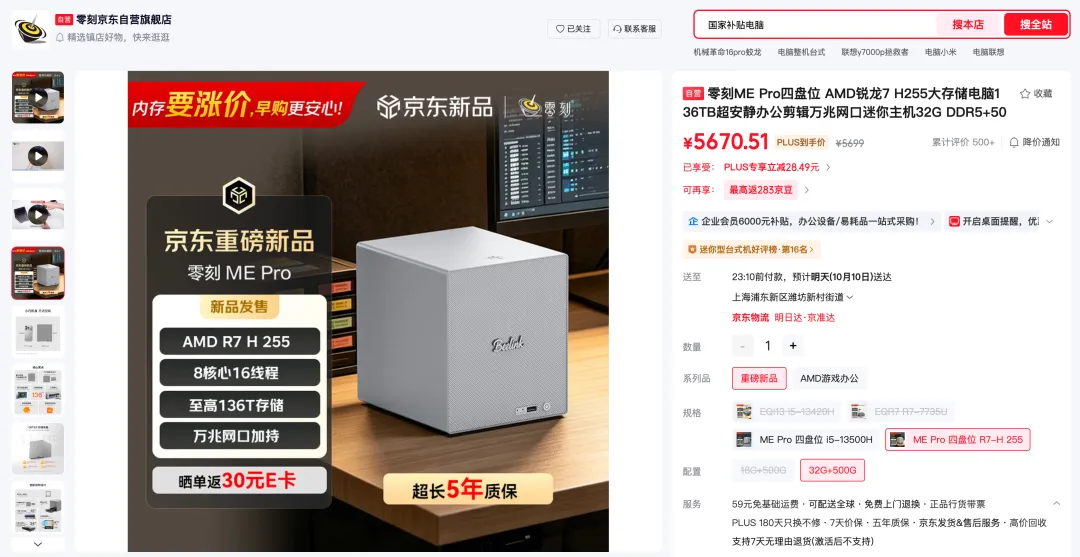
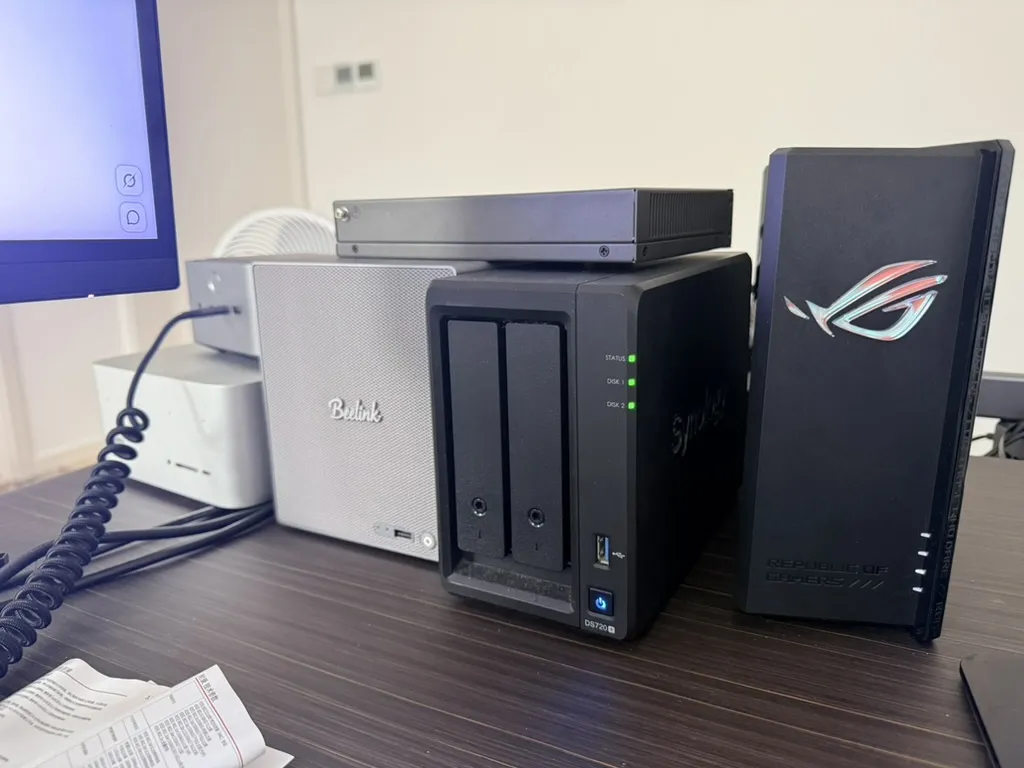
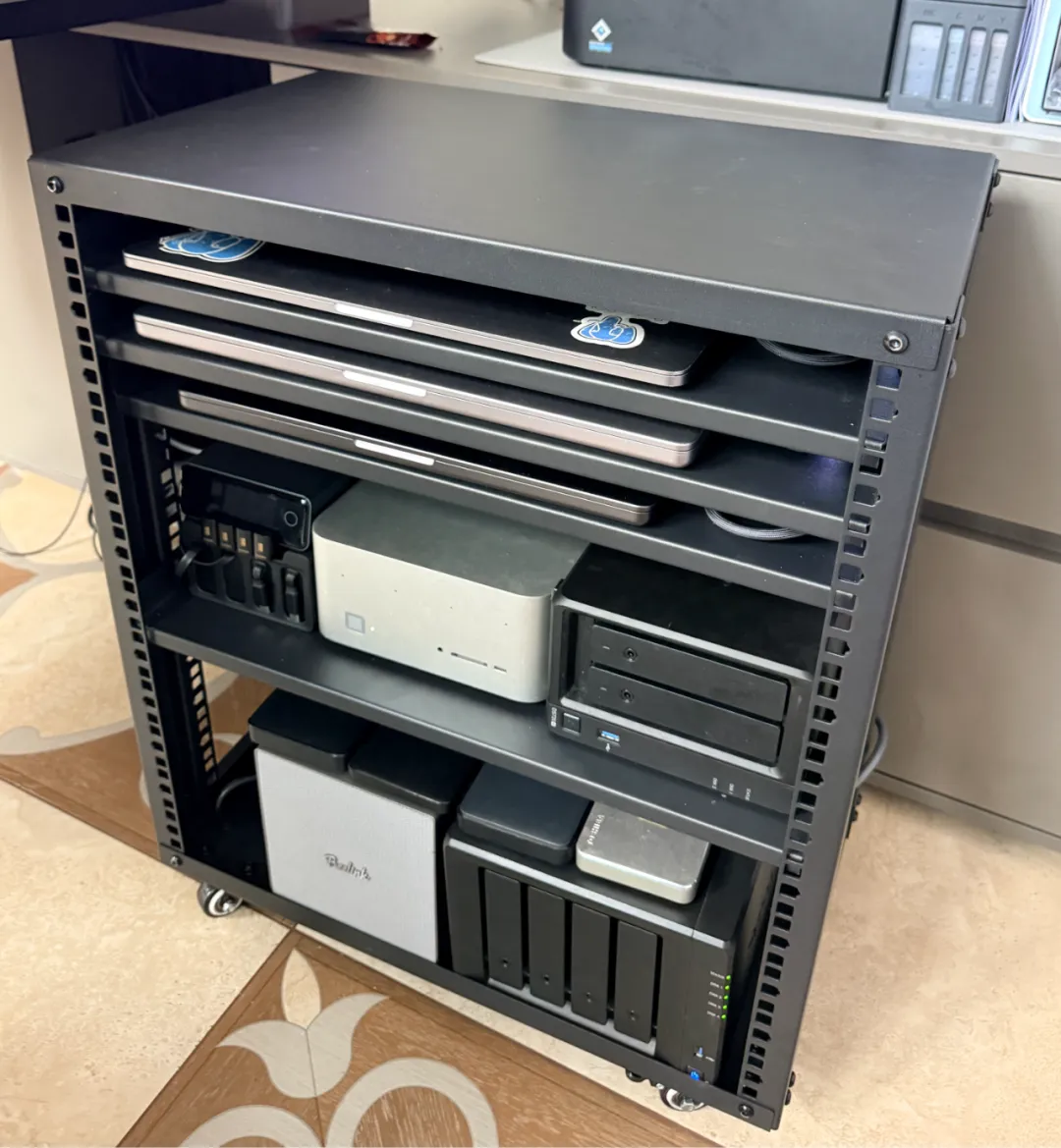
The ME Pro has exactly four bays, uses its space well, and is compact. It is the same height as my Synology, so both fit on the same shelf in the rack and look good together. There are two-bay and four-bay versions, but for a NAS I would take even somewhat seriously, I would choose four bays.

To be fair, the N5 is a good option too. My final shortlist came down to the N5 series and the four-bay ME Pro. With the Chinese government subsidy and a promotion, I paid ¥4,819 for the Beelink.
What Tipped the Decision
So why Beelink in the end?
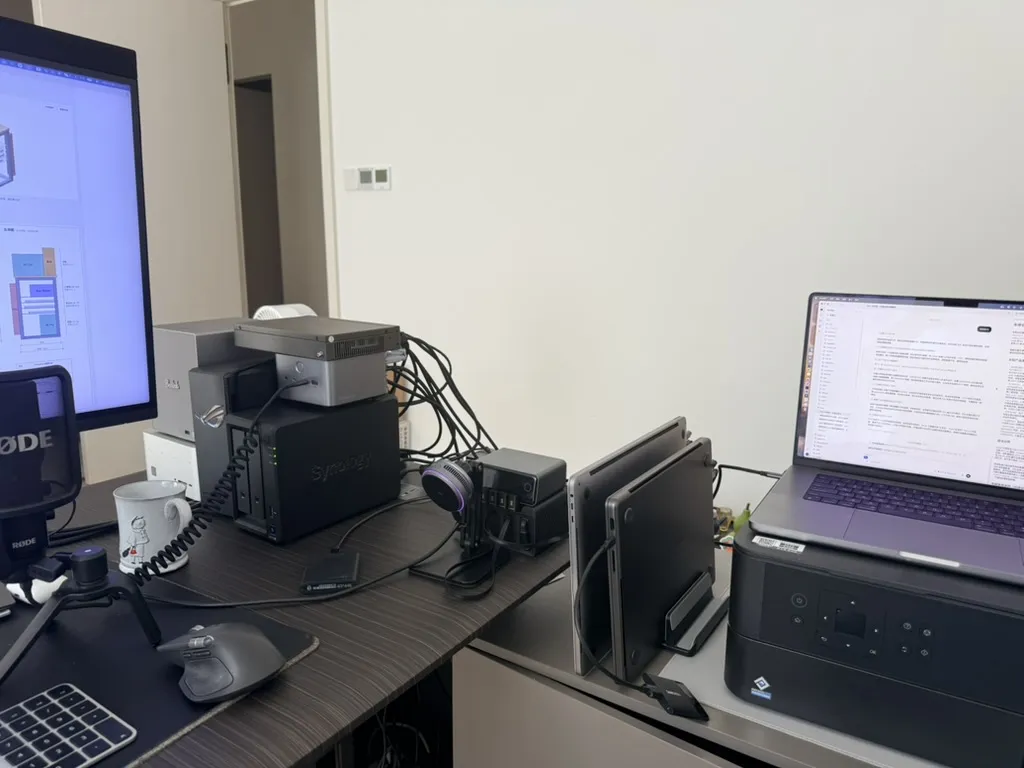
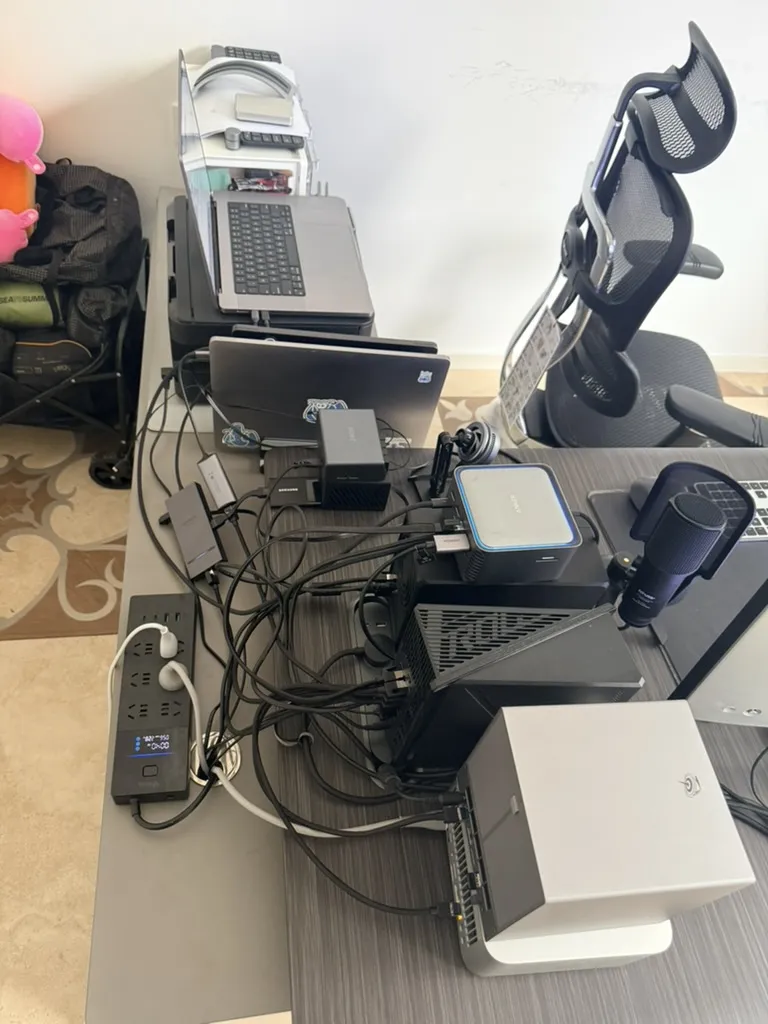
Size was probably the deciding factor. The four-bay CNC-machined aluminum enclosure measures roughly 165 × 145 × 165 mm, excluding the feet. It is very compact, and about as tall as an iPhone Pro Max. I meant to take more photos, but both NAS boxes were busy copying data and I could not be bothered to move them. These should give you a sense of scale.
Another feature I like is the range of processors it supports. The motherboard assembly is a drawer: you can pull the whole thing out, much like a hard drive, and replace it with another assembly. Standalone boards do not seem to be on sale yet, but the design at least leaves room for upgrades. Being able to pull the board out also makes cleaning and maintenance easier.
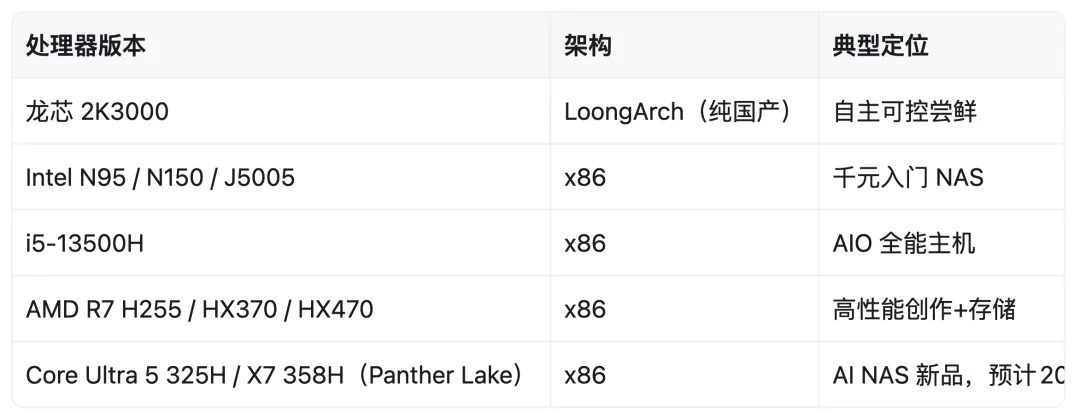
I bought the relatively inexpensive Ryzen 7 H 255 version. There are also HX 370 and HX 470 options, and, rather remarkably, a Loongson board. Plenty to experiment with. I previously helped get Loongson support into the official PostgreSQL repository. If I ever need to port software to Loongson myself, I could just slide a Loongson ME Pro board into this enclosure instead of buying another collection of obscure hardware.
Getting Started: Bring a Screwdriver
Once you have it in your hands, it is a very likable little machine.
Coming from Synology, though, I found myself dealing with quite a few screws. The rear drive-bay cover attaches magnetically and lifts straight off. Inside, all four drive trays are held by screws, and an Allen key is tucked into the bottom of the machine. Every time you remove or install a drive, you have to undo and tighten them again. It is considerably less convenient than Synology’s tool-free trays.
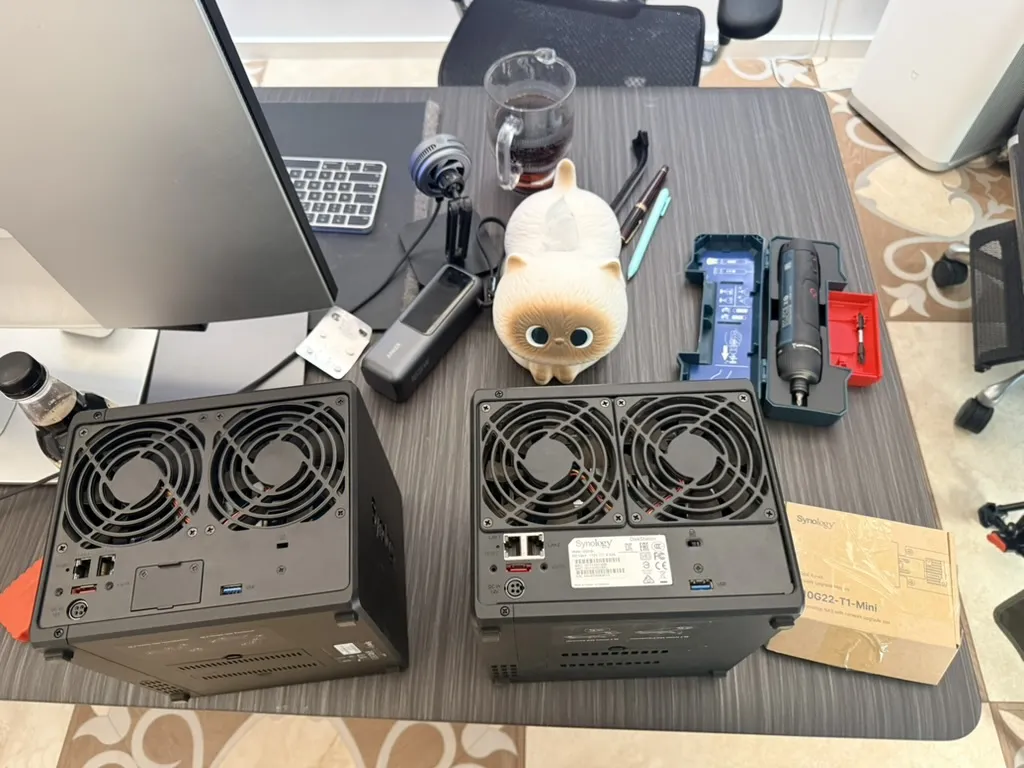
With a Bosch Go screwdriver in hand, I can take on anything.
The SSDs are much the same story. One important reason I chose the lower-end H255 CPU was that the cheaper processor comes with the more generous M.2 layout: four slots in all.
- Two ×4 slots on the underside of the motherboard.
- One ×4 slot on top for the system drive.
- One ×1 slot beside the system drive, left empty at the factory.
If you only add two NVMe SSDs, you just open the bottom cover and remove two screws. To use the ×1 slot as well, you have to pull out the motherboard drawer, remove three screws from the cooling fan, then two more from the system-drive cover before inserting the SSD. A little more work, but a few screws are hardly going to defeat a middle-aged man.
The OS: Wipe Windows, Install Ubuntu
There were several configurations at checkout. The cheapest was a barebones model with no RAM or drive, at a little over ¥2,000. I chose the version with 32 GB of RAM and a 500 GB system drive. Buying the memory separately would have cost more, so the complete machine made better sense. It came to about ¥4,800.
It ships with Windows 11 Pro. I had no intention of using that, so I wiped it and installed Ubuntu.
You can also install fnOS, a NAS operating system from China. Friends tell me its user experience is good, among the better third-party NAS systems. I did not want to spend time on that, and I do not need elaborate media features. I just need somewhere to put files: set up RAID, enable an SMB share, mount it locally. Ubuntu is enough.
If you want a full NAS appliance experience, with something like Synology DSM, fnOS may be a better fit. I have not tested it myself. My understanding is that Beelink also manufactures fnOS’s own hardware, making it something close to a first-party platform.
PC NAS: A Different Category
Strictly speaking, I do not think these machines are traditional NAS boxes anymore. They combine a PC and a NAS. We might as well give the category a name: PC NAS.
A traditional NAS mostly handles storage, with so little processing power that you can almost ignore it. The CPUs in my three Synology models were either dual-core Ryzen chips or quad-core Celerons, with 2–4 GB of RAM. What can you really do with that sort of bargain-basement configuration today? Essentially one thing: store files.
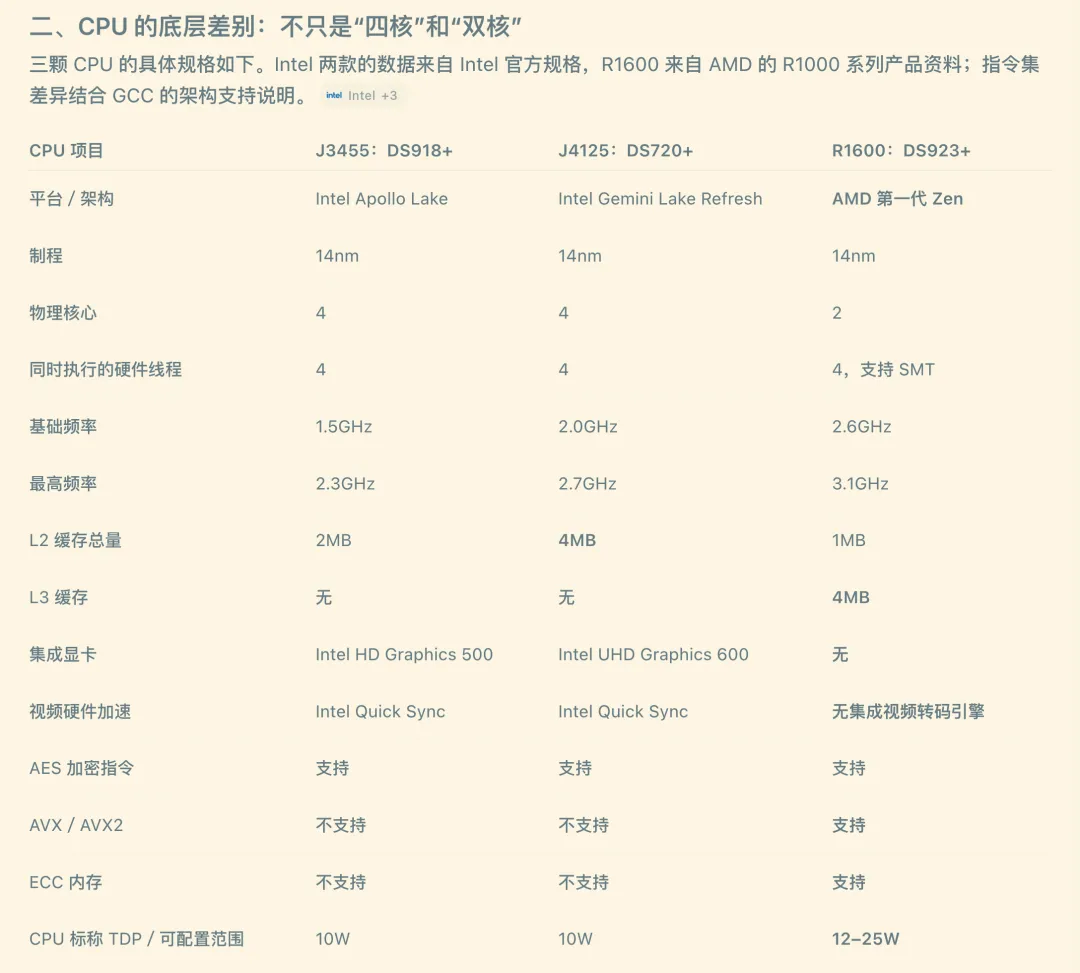
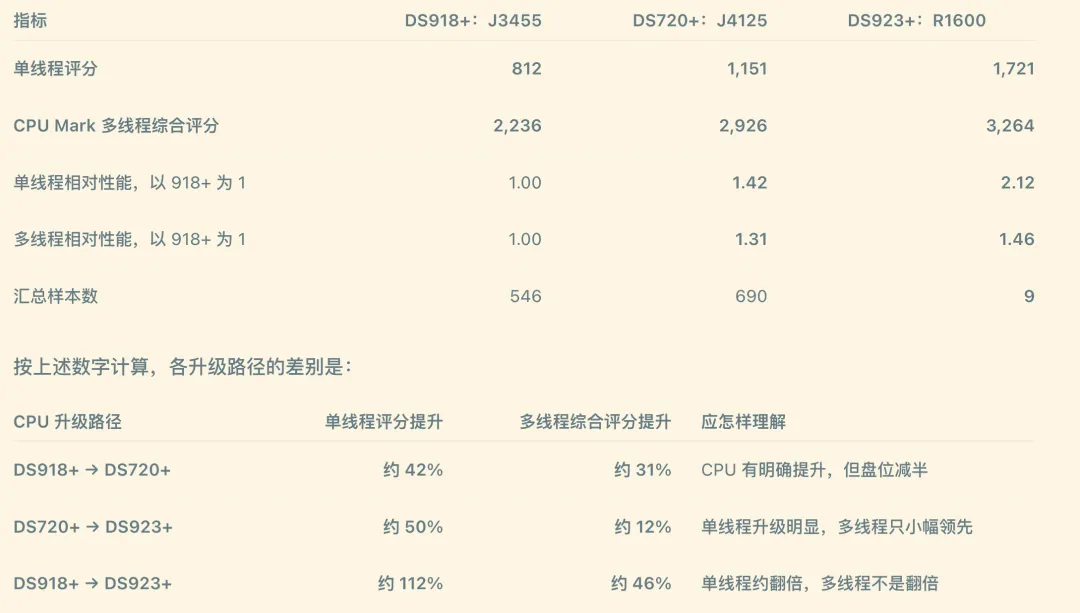
The newer machines from Synology, Beelink, and Minisforum have processing power you can actually use. The H255 is an eight-core, sixteen-thread Zen 4 processor. That is enough to get some work done.
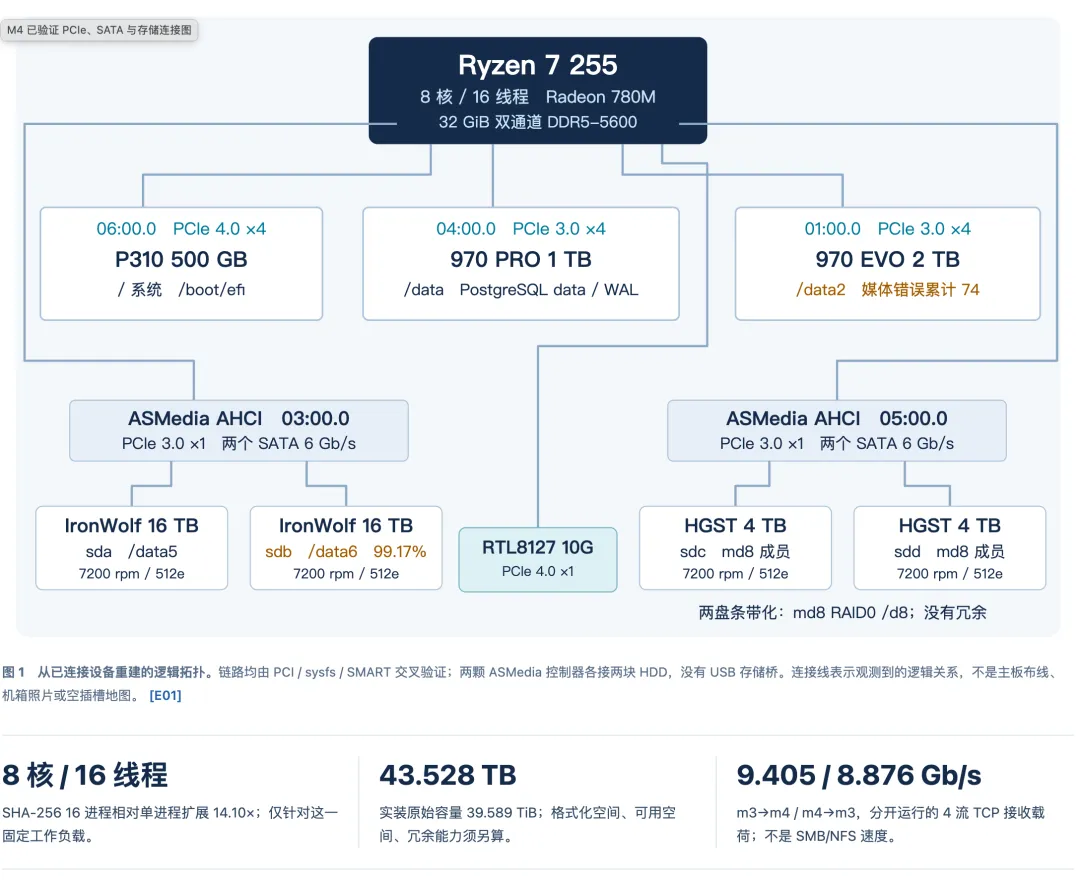
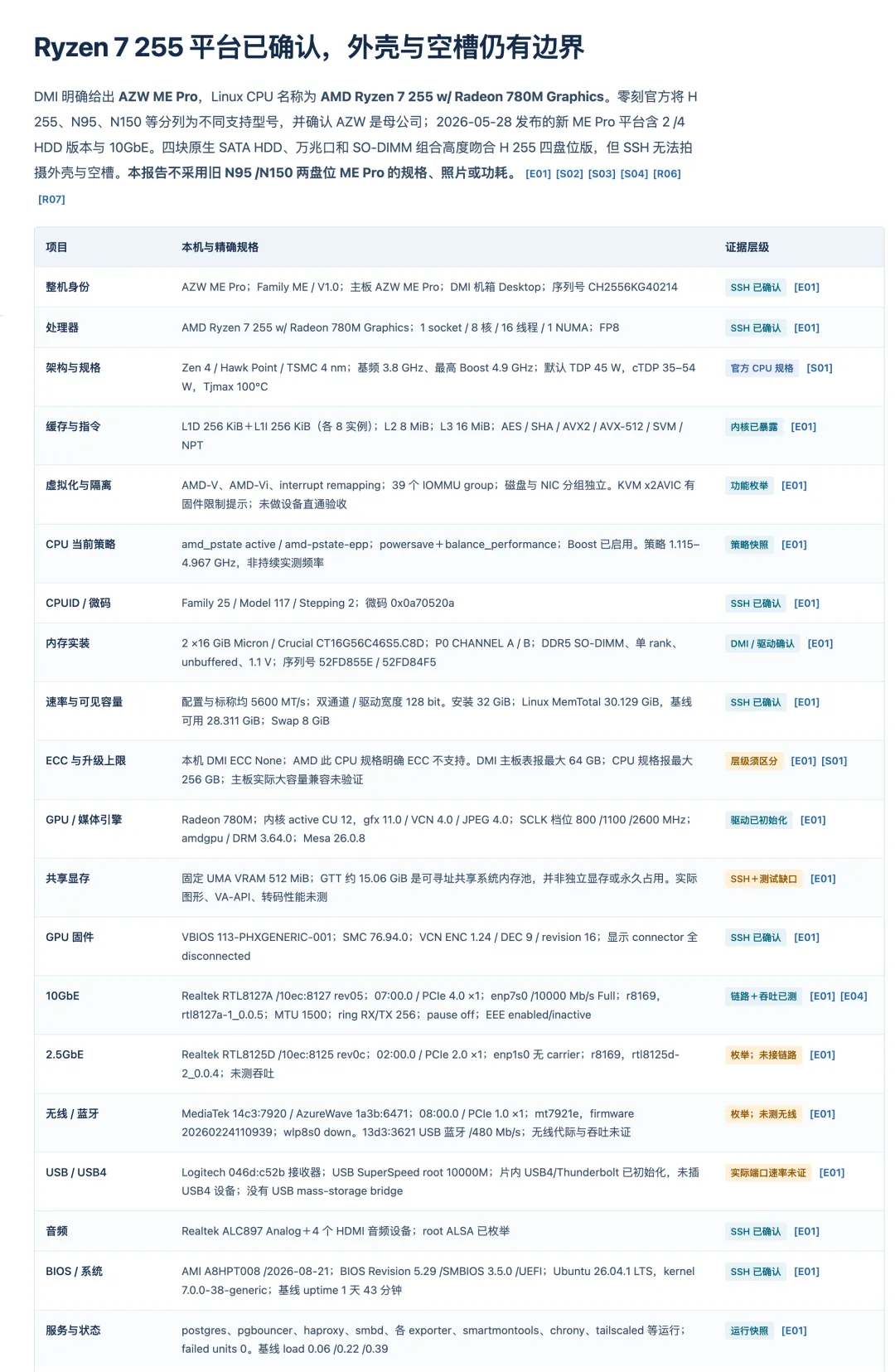
Honestly, if I did not already have the GTR9 Pro, I would probably have bought an N5 Max with an AMD AI Max 395/495, handling storage and compute in one machine.
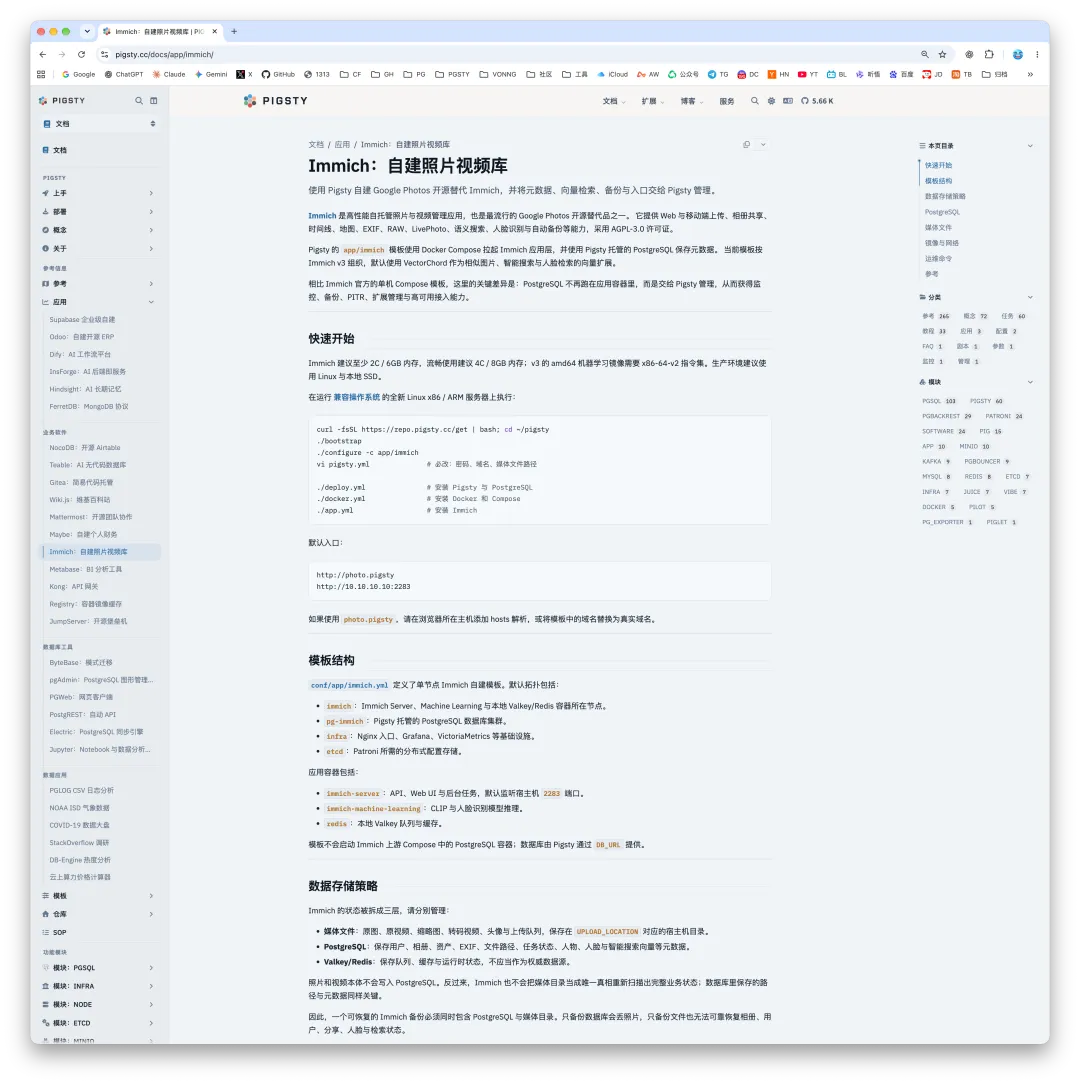
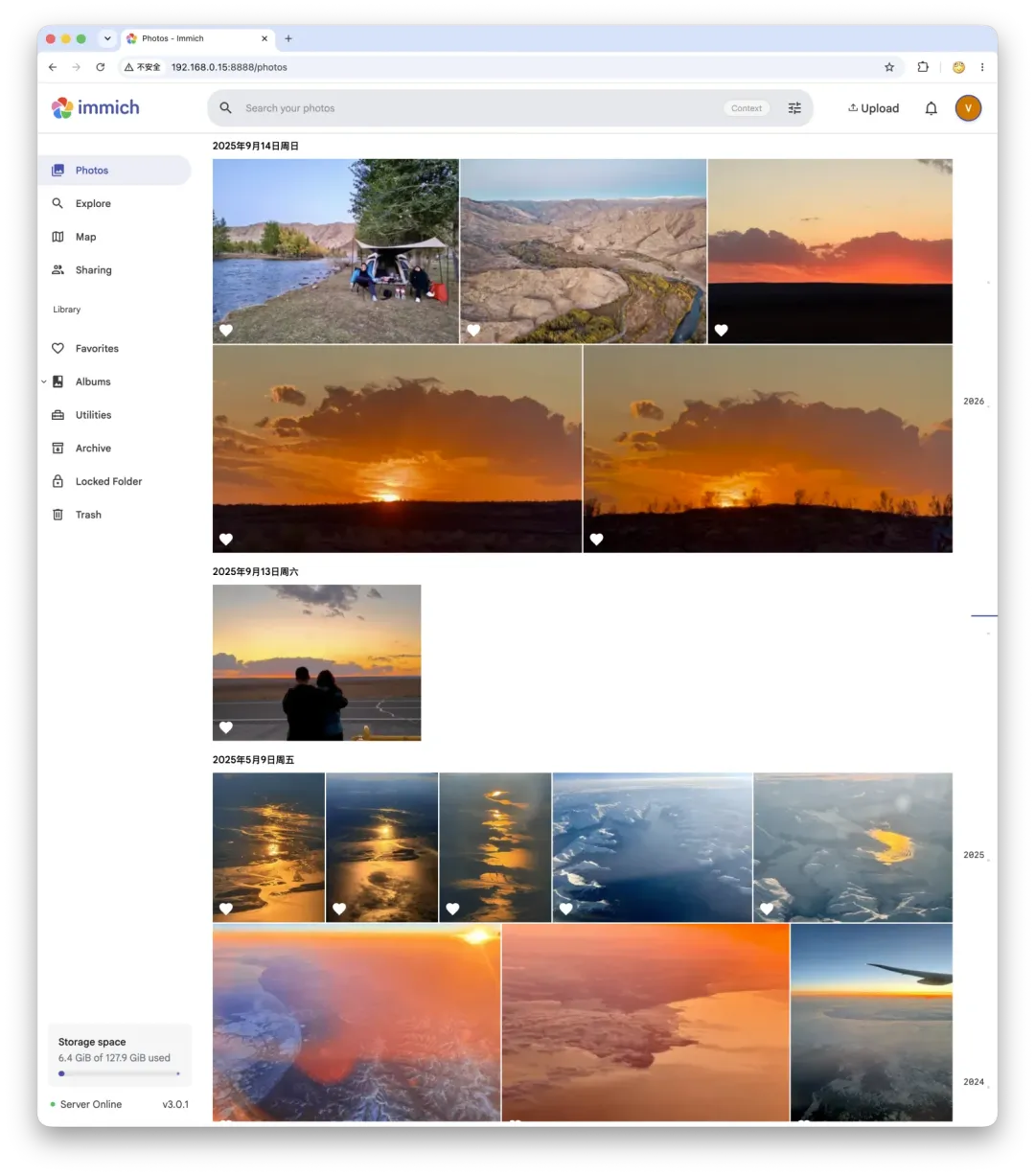
Photo storage and browsing are a good use for a NAS with some processing power. Synology Photos is fairly limited. If you want a self-hosted photo library approaching the Apple Photos experience, the machine needs some compute behind it. I run Immich for that. One complication is its PostgreSQL dependency: it needs vector extensions, not just a plain PostgreSQL installation. pgvector remains the foundation; the current Immich setup also uses VectorChord, which depends on it.
Most people would put together a Docker Compose deployment. As someone who does this for a living, I naturally use my own tools: Pigsty, which I developed, deploys PostgreSQL in one step, with Immich running on top. That is where I keep my photo library. Here are the deployment instructions.
Pigsty v4.4: Immich support.
What Do I Actually Use a NAS For?
That leaves a basic question: what is a NAS for?
Most people use one as their own file storage service: movies, photos, source material. People working in film and video have plenty of use for one too; footage has to live somewhere. The same applies to me.
My DS923+ has about 26 TB of usable space, almost exactly enough for all my data—roughly 25 TB after deduplication. With a complete, authoritative copy on the Synology, I chose no redundancy on the ME Pro and used RAID 0 instead:
- A 30 TB pool from two 16 TB drives, holding the files from the Synology and things that previously did not fit.
- An 8 TB pool from two 4 TB drives, holding private-tracker data, video-editing footage, and project files.
Its biggest contribution, though, is freeing the 8 TB of flash storage in each of my two main computers, the M1 Max and M5 Max, for coding. Apple’s SSDs might as well be made of gold. Hard drives are much cheaper, so cold data belongs on the NAS.

What Will My Next Computer Be?
There are now six computers on my home network. I am glad I did not sell the older ones: in the age of agents, they have all found a second life.
I still have some old equipment and have been thinking about how to reuse it:
- An X99 gaming desktop with what was a top-end CPU in 2019, 32 GB of RAM, and an RTX 2080 Ti.
- A Dell R730 server with sixteen 16 GB ECC DIMMs, two CPUs totaling 36 cores and 72 threads, and a 3.2 TB PCIe NVMe SSD.
Throwing those parts away would be a shame. Together, they could make a perfectly decent machine. The main problems are noise and power consumption. My entire rack plus monitor normally draws about 400 W, or 700–800 W under full load. A big server alone can draw that much at full load.
More to the point, my current setup is almost silent. There is some noise when the hard drives are busy, but I can live with that. It sits beside me and, in this weather, doubles as a heater. Server fan noise would be intolerable.
I considered making the old hardware quieter. Looking at workstations from a decade ago, the Dell T7910 and HP Z840 towers seemed promising. I could buy one, move over the R730’s two CPUs and sixteen DIMMs, and add the GPU and PCIe storage card. I might even experiment with some old Optane or Micron X100 hardware—interesting used enterprise gear that has become cheap enough to play with.
But after thinking it through, I could not identify much I actually needed that machine for.
What I really want now comes down to two machines.
The first is a Mac Studio with an M5 Ultra and 512 GB of unified memory. That much memory would let me run models in the GLM-5, GLM-5.3, and GLM-5.3 Flash class locally at a reasonable speed, perhaps even uncensored models.
Some context: I already have Zhipu’s v1 Max GLM Coding Plan, which costs me next to nothing. There is ¥16,000 sitting in my Zhipu account, enough to pay for years of subscriptions. I have more than enough capacity, and the models are capable. Yet for personal-assistant work, even free credits would not make me comfortable handing it to a cloud service. What ZCode did to my repository was warning enough.
I want one box running an always-on, unlimited, entirely local dispatcher: an assistant that assigns all the work and handles some everyday tasks itself. I think that should be my next computer.
The second might be another top-end AMD desktop with a good GPU. If RTX 5090 or RTX Pro 6000 prices ever become reasonable, I would like one. I could kick myself for not buying a card a few months ago when prices were still sensible.
The remastered version of The Witcher 3 has just arrived, with a new expansion, The Witcher 4, and other GPU-hungry games in the queue. Running them on my old 2080 Ti is painful. What I would most like is a breakthrough in NVIDIA drivers for Apple hardware—or someone finding a way to make it work—so I could attach an NVIDIA eGPU to a Mac or the GTR9 Pro and play.
Those are projects for another day. With the setup where it is now, the DS923+ and ME Pro should cover me for another five years. I expect to leave NAS purchases alone for that long. Any further storage experiments will probably involve old Optane or Micron X100 hardware.
Advice for Anyone Considering a NAS
That is about it. A few thoughts for anyone shopping for a NAS.
If you really do not want to get your hands dirty, Synology is still my first choice. The software is mature, the ecosystem is excellent, and drive installation is wonderfully easy: not a single screw to turn. But the premium is excessive. For the same money, you get a bargain-basement CPU and gigabit Ethernet, which feels frankly insulting. Still, it is reliable and convenient.
If you are willing to tinker a little, a machine like the ME Pro is well worth considering. Calling it just a NAS undersells it; PC NAS is a better description. For a conventional NAS experience, install fnOS. If all you want is a storage server, have Codex help work through the configuration, then mount the shares on your devices. It is not particularly hard.
I want both: a dependable, near-enterprise appliance and an environment where I can experiment freely with open-source software. So I bought one of each.